Windows
 Apple Silicon


Table of Contents
In video editing, Captions are key to enhancing content reach—they not only help viewers understand the Audio but also adapt to silent playback scenarios. If your Pr sequence is short, manual Caption transcription is a flexible and precise choice. Below, we break down the entire workflow from creating Caption tracks to editing text, so even beginners can quickly get up to speed!
I. Preparation: Open the Captions and Graphics Workspace
- Launch Premiere Pro and open your target project and sequence.
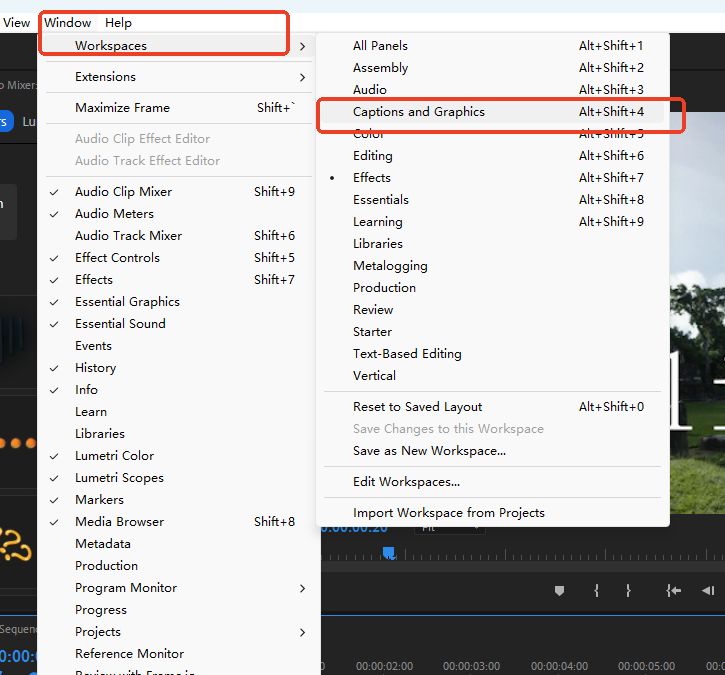
- Open the dedicated Caption workspace: Click the top menu bar Window → Workspace → Captions and Graphics.
- This will automatically bring up two core Panels:
- Text Panel: Used for creating and editing Caption text content.
- Essential Graphics Panel: Used for setting Caption styles like font, color, and size.
II. Create a Caption Track: Set Basic Format
- Quickly Create a New Track:
- Method 1: In the Text Panel, click the “Create new caption track” button.
- Method 2: Use the keyboard shortcut (macOS: Opt + Cmd + A | Win: Ctrl + Alt + A) for higher efficiency.
- Configure Track Parameters:
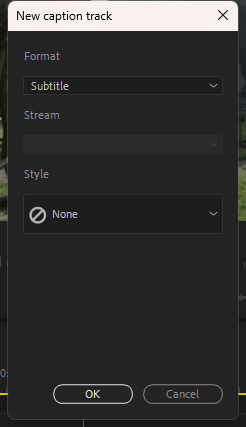
- In the pop-up “New Caption Track” dialog, the default format is “Captions” (recommended choice, supports stylized design and can be burned into the video or exported as a separate file).
- If you have saved commonly used text styles before (e.g., uniform font, color scheme), you can directly select them from the “Style” dropdown list, avoiding repeated setup.
- Click “OK”. The new Caption track will automatically be added to the Timeline. You can change the format later in the track settings.
III. Add and Edit Captions: Precise Audio Alignment
- Locate the Caption Start Point: Move the Timeline‘s playhead to the beginning of the first piece of dialogue. It’s recommended to enable the audio waveform (click the “Show Waveform” button in the top-right corner of the Timeline Panel) to facilitate alignment with speech rhythm.
- Create a Blank Caption:
- Method 1: Click the “+” icon in the Text Panel.
- Method 2: Use the keyboard shortcut (macOS: Opt + Cmd + C | Win: Ctrl + Alt + C).
- Input and Edit Text: Double-click “New Caption” in the Text Panel, or directly click the Caption area in the Program Monitor, and input the corresponding dialogue text.
- Adjust Caption Duration: On the Caption track in the Timeline, drag the end point of the Caption clip to align precisely with the end of the dialogue.
- Batch Addition: Repeat steps 1-4 to add Captions sequentially for all Audio segments in the sequence, completing the manual transcription.
IV. Efficiency Upgrade: Use PrAide to Bid Farewell to Tedious Operations
Manual Caption transcription is precise, but when dealing with long videos or multiple segments, the process of typing sentence by sentence and adjusting durations is time-consuming and laborious. It can also easily lead to issues like Captions not syncing with Audio or inconsistent formatting. At this point, the PrAide plugin can help you unlock an efficient Caption workflow with one click, boosting Caption production efficiency by 80%!
V. Core Advantages of PrAide
- Intelligent Speech-to-Text: No manual input required. Upload Audio or directly recognize Audio in the Pr sequence. Accurate transcription can be completed in 1 minute, supporting Chinese and English with over 95% recognition accuracy.
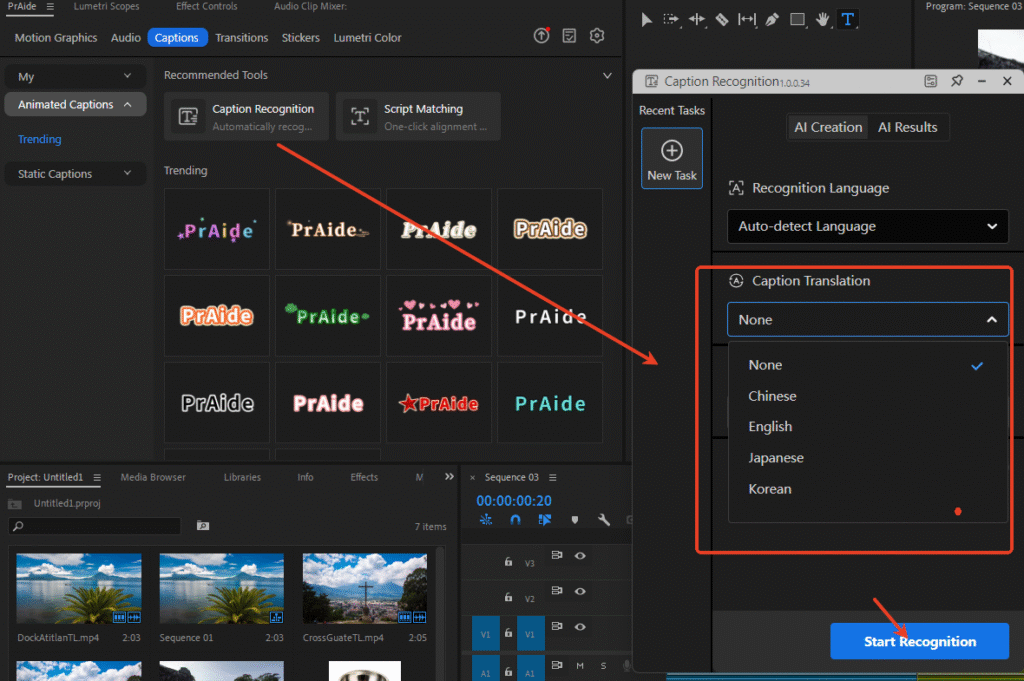
- Automatic Audio Alignment: After transcription, Captions are automatically matched to the Audio waveform, precisely locating the start and end times of each dialogue line. No manual dragging and adjusting needed.
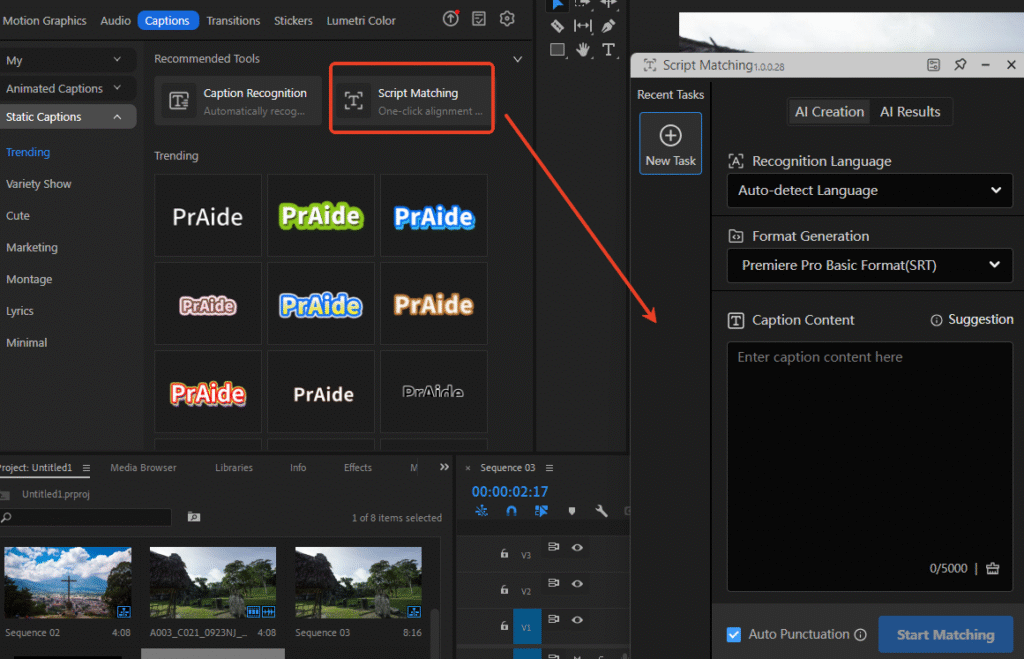
- Unified Style with One-Click Application: Comes with a massive library of professional Caption templates (for scenarios like film/TV, short videos, tutorials). You can customize parameters like font, color, and stroke. Once set, apply them to all Captions with one click, avoiding segment-by-segment adjustments.
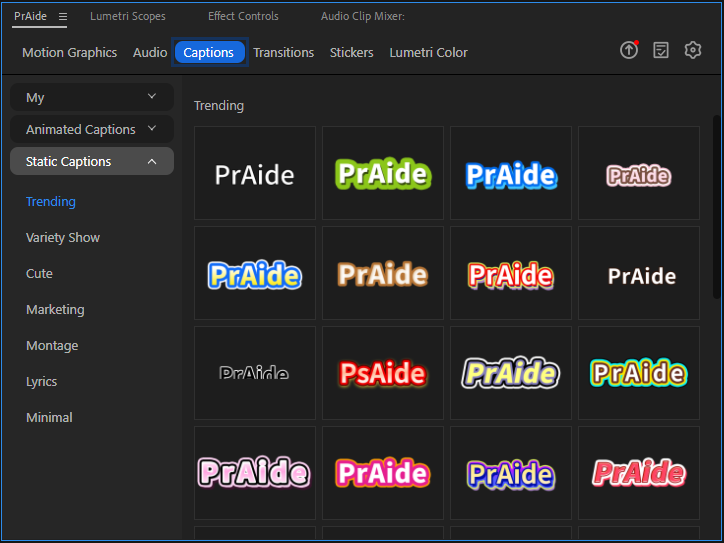
- Seamless Export Compatibility: Generated Captions can be edited directly within the Pr Timeline, support burning into the video, or can be exported as mainstream formats like SRT, ASS, etc., adapting to multi-platform publishing needs.
Whether for short video creation, course recording, or film editing, PrAide can help you escape the of manual transcription, making Caption production more efficient and professional. After installation, call it directly within Pr—no software switching required. It perfectly integrates with your editing workflow and is an essential Caption efficiency tool for Pr users!
PrAide Download:https://pr.aide.art/
Perhaps a simple attempt will bring unprecedented ease to your Pr editing. If you’re struggling with creating Pr Caption effects, click to Install Now and try PrAide bravely—you might gain unexpected rewards.