Windows
 Apple Silicon


Table of Contents
PrAide is a plugin for Adobe Premiere Pro (Pr). To use it, you need to link PrAide with your Premiere Pro installation.
1.Supported Pr Versions
PrAide supports Premiere Pro 2020 and later. If your version is older, please upgrade before linking.
2.How to Link Premiere Pro
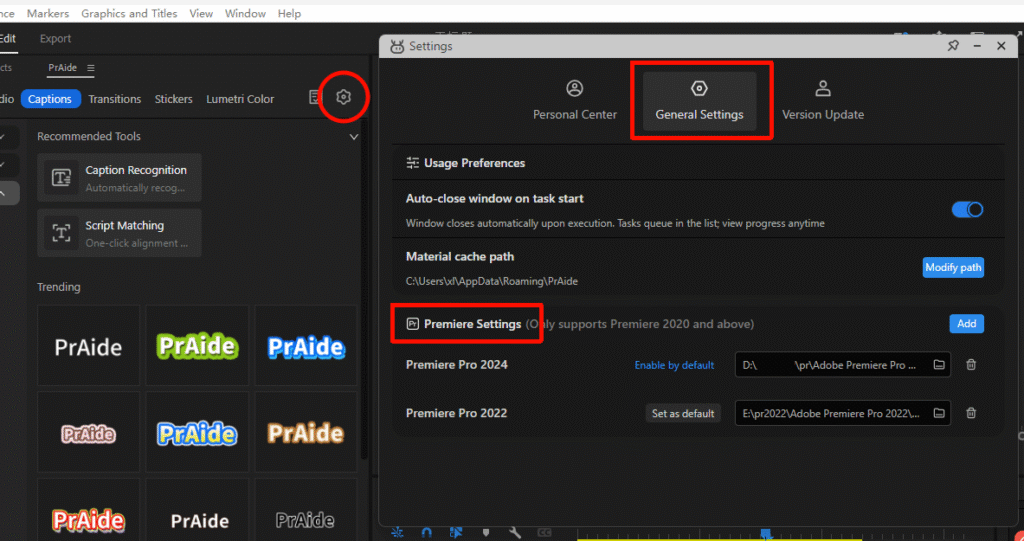
(1) Open PrAide Settings
Open PrAide and click the Settings icon (gear icon) on the main screen. In the Settings menu, select General Settings and then Premiere Settings.
This page is where you manage your Pr links.
(2) Add a New Pr Link
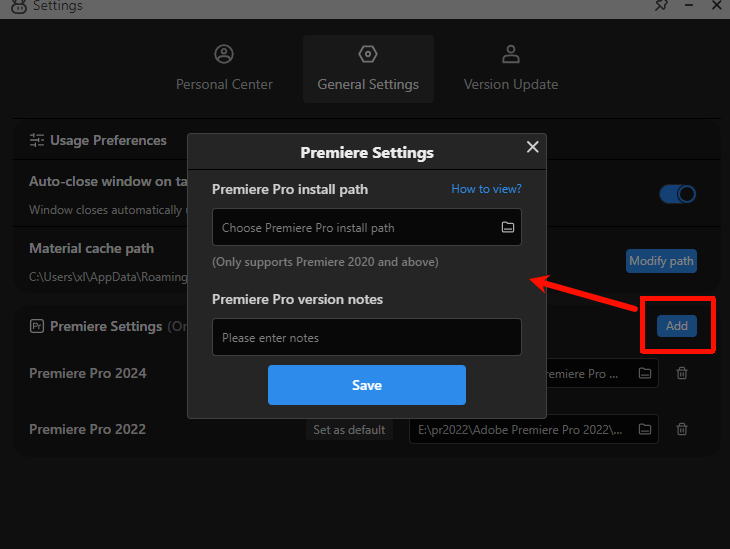
In “Premiere Settings”, click the “Add” button . A dialog box will appear for entering Pr linking information.
(3) Enter Pr Details
To link Premiere Pro, enter the full installation path. Entering an incorrect path will cause the link to fail. Add a version label (for example, “Pr 2022”) to help you manage multiple versions.
(4) Complete the Linking
After entering the required information, click “Save”. The system will automatically store the link settings.
3.How to Find the Pr Installation Path
Providing the correct installation path is essential for a successful link. Follow the steps below:
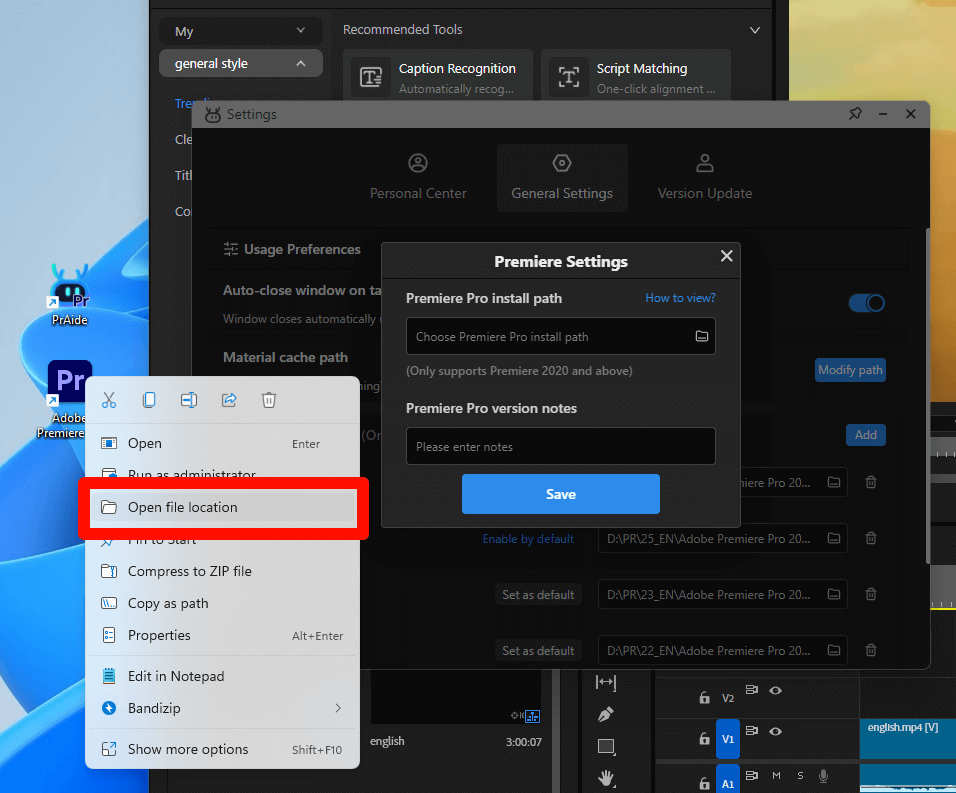
(1) Use the Desktop Shortcut
Locate the Pr shortcut on your desktop. Right-click and select “Open file location”.
(2) Copy the Installation Path
In File Explorer, find the Premiere Pro installation folder, such as “D:\PR\25_EN\Adobe Premiere Pro 2025”.
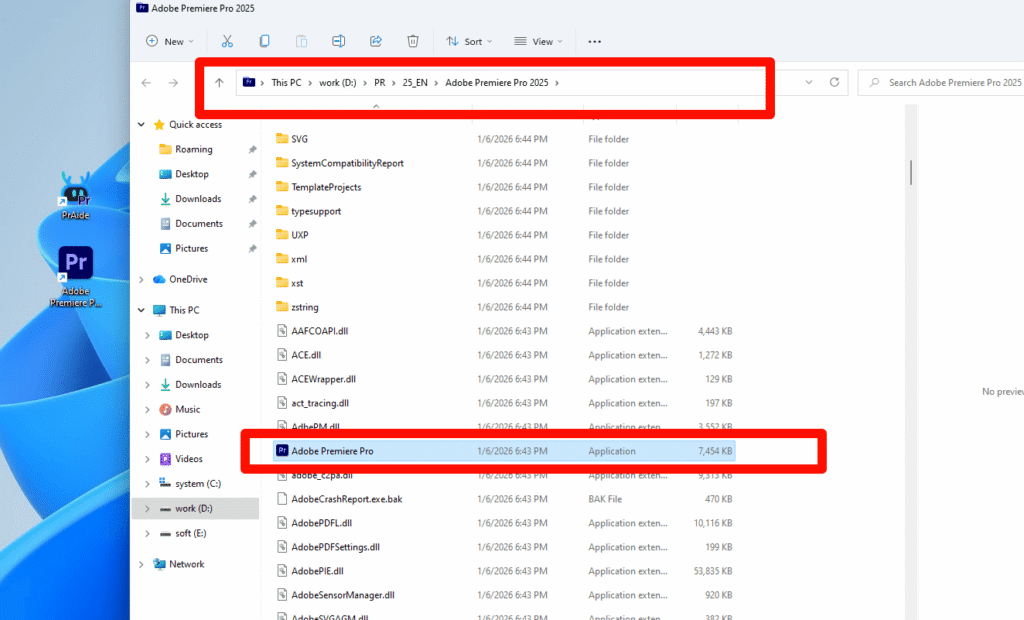
Click the address bar with your mouse to enter input mode.
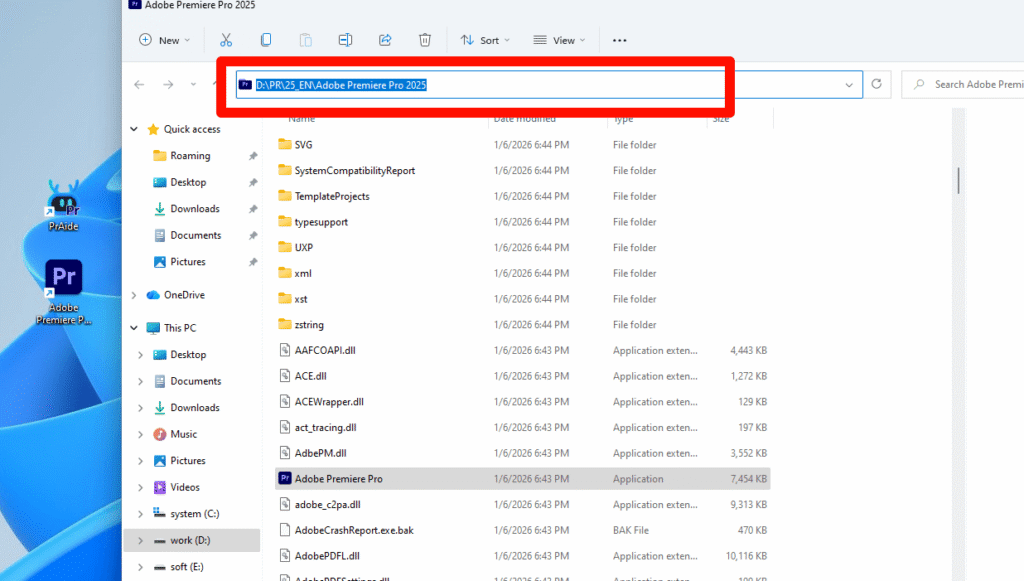
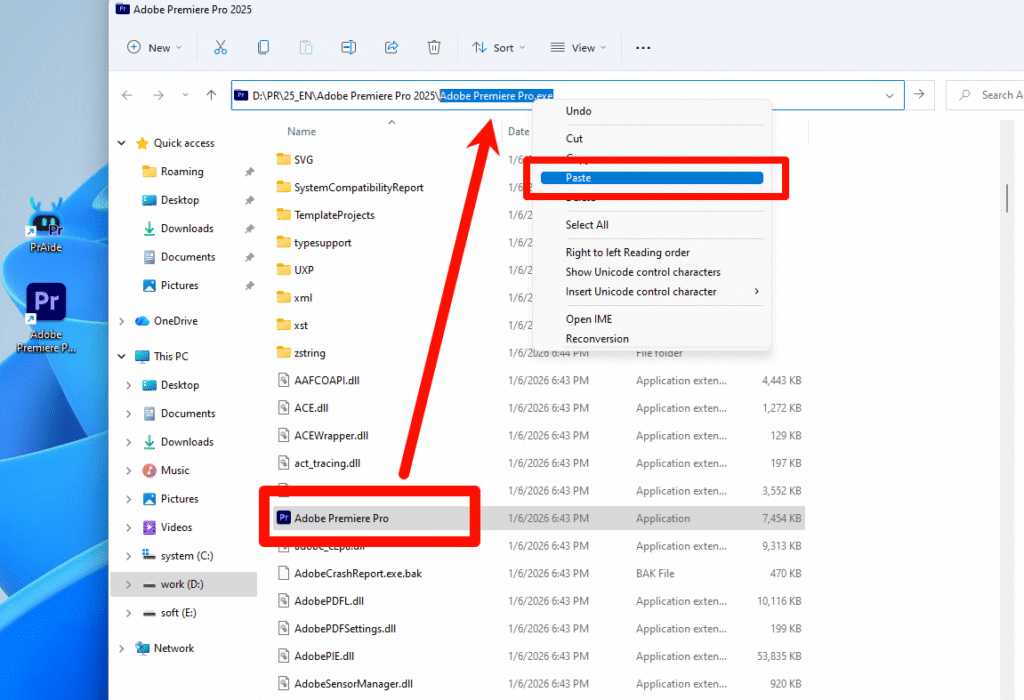
Copy “Adobe Premiere Pro.exe” and paste it at the end of “D:\PR\25_EN\Adobe Premiere Pro 2025” in the address bar to get the full path.
After pasting, the full installation path will be: “D:\PR\25_EN\Adobe Premiere Pro 2025\Adobe Premiere Pro.exe”. Copy this path to the clipboard.
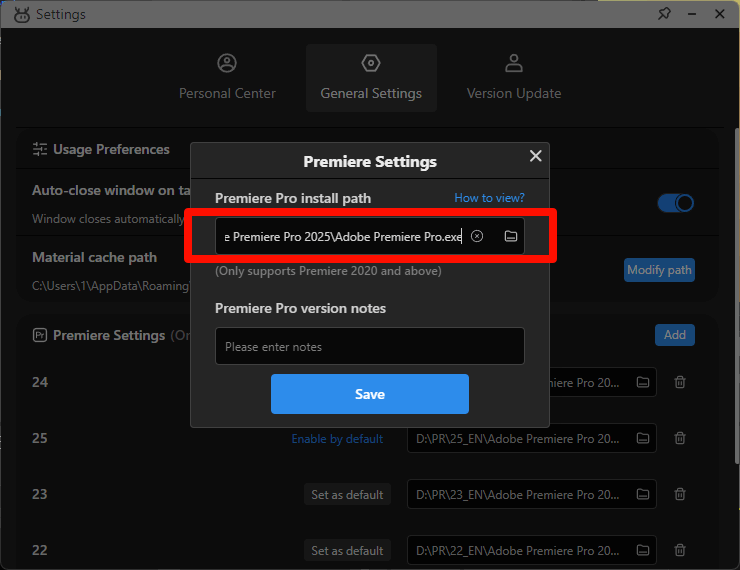
(3) Paste into PrAide
In the PrAide settings, paste the full Pr installation path you copied.
4.Linking Multiple Pr Versions
(1) Multiple Versions Supported
PrAide lets you link multiple Pr versions. If you have Pr 2021, Pr 2024, etc., repeat “Add and Link” for each version and switch between them as needed.
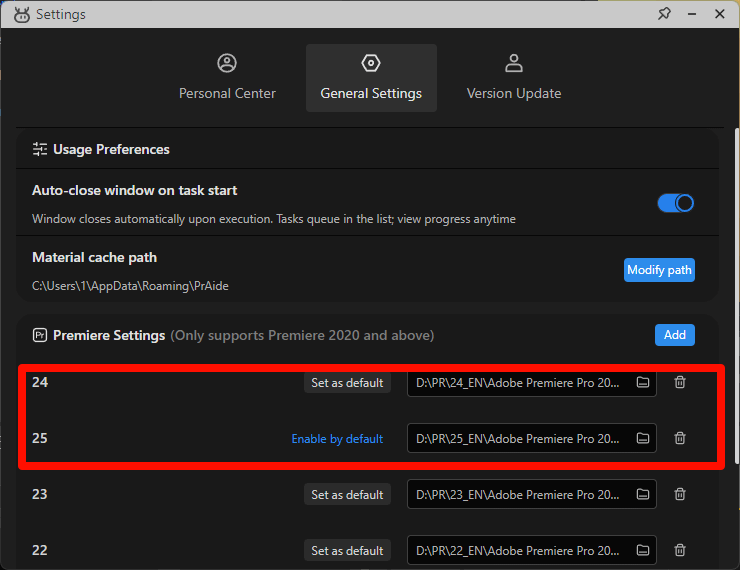
(2) Set a Default Launch Version
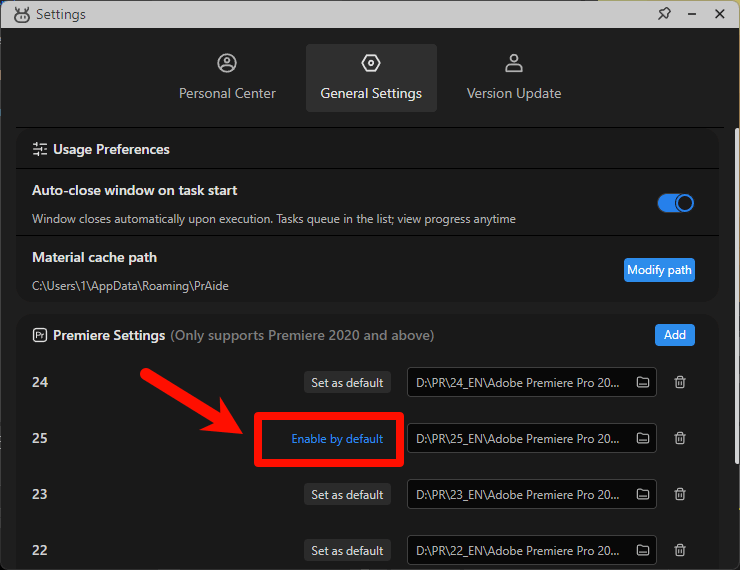
In “Premiere Settings”, select a Pr version and click “Set as Default”. PrAide will then launch this version automatically, opening both PSAide and Premiere Pro with one click.
How to Obtain an Invitation Code
· Get it via our discord community.
· Email [email protected] to request one.
Download for Windows / Mac: https://pr.aide.art/
Help: https://pr.aide.art/help/