Windows
 Apple Silicon


Table of Contents
In video production, subtitles are a crucial element for enhancing the dissemination power of content and reaching a diverse audience – they not only help viewers clearly understand the core information, but also adapt to silent viewing scenarios, cross-language communication needs, and the usage of the hearing-impaired. Adobe Premiere Pro is a professional video editing software that offers various flexible methods and style effects for adding subtitles, as well as animation effect production.
1.Methods for Adding Captions in Pr
- Import Your Video Project: Launch Adobe Premiere Pro, open a new project, import the target video, and drag it to the Timeline.
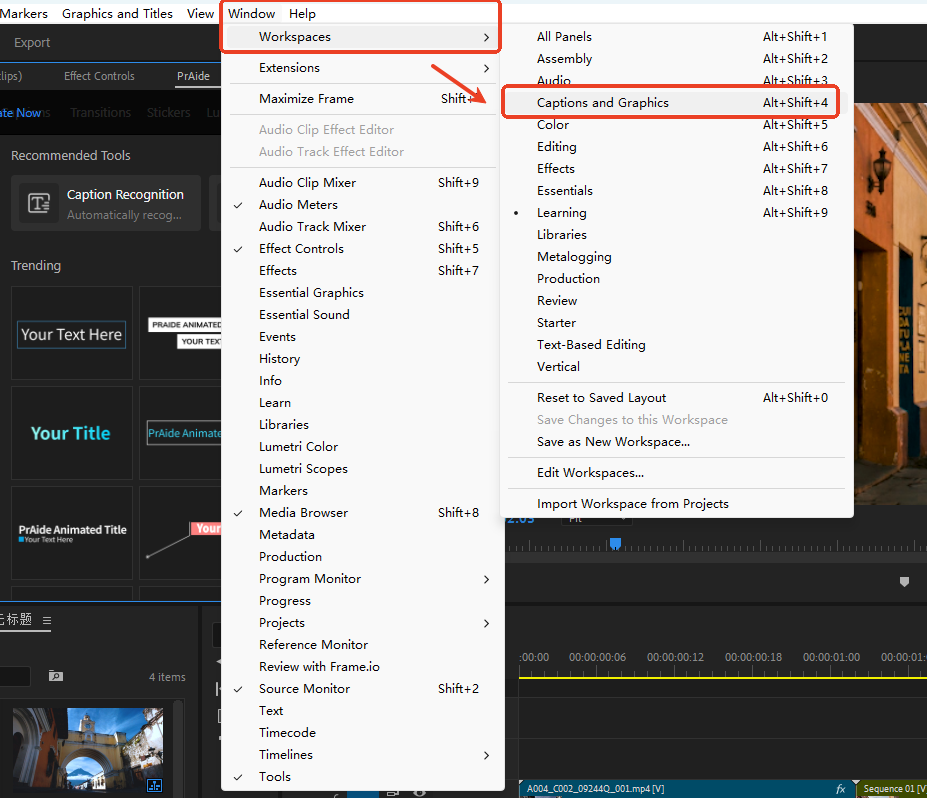
- Enter the Pr Captions Workspace: In the Pr interface, go to Window > Workspace > Captions and Graphics to switch to the workspace dedicated to Captions handling, bringing up the Captions management Panel.
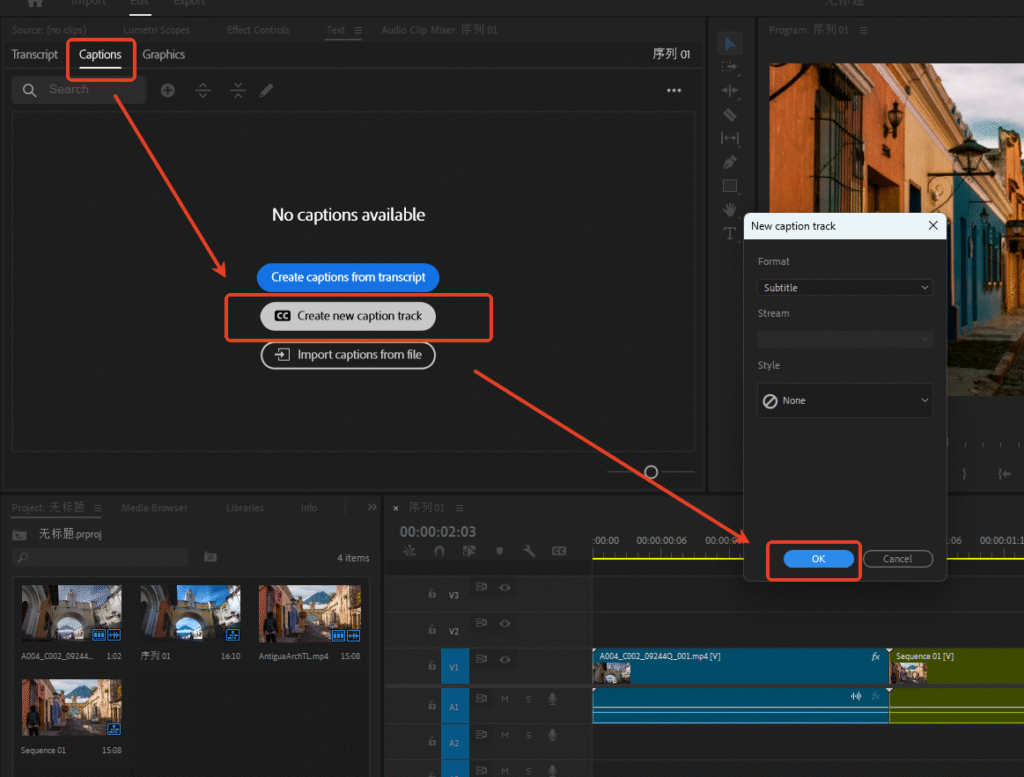
- Create a New Captions Track: In the Captions management Panel, select ‘Create New Caption Track’, click ‘OK’ in the pop-up window to generate a dedicated Captions track.
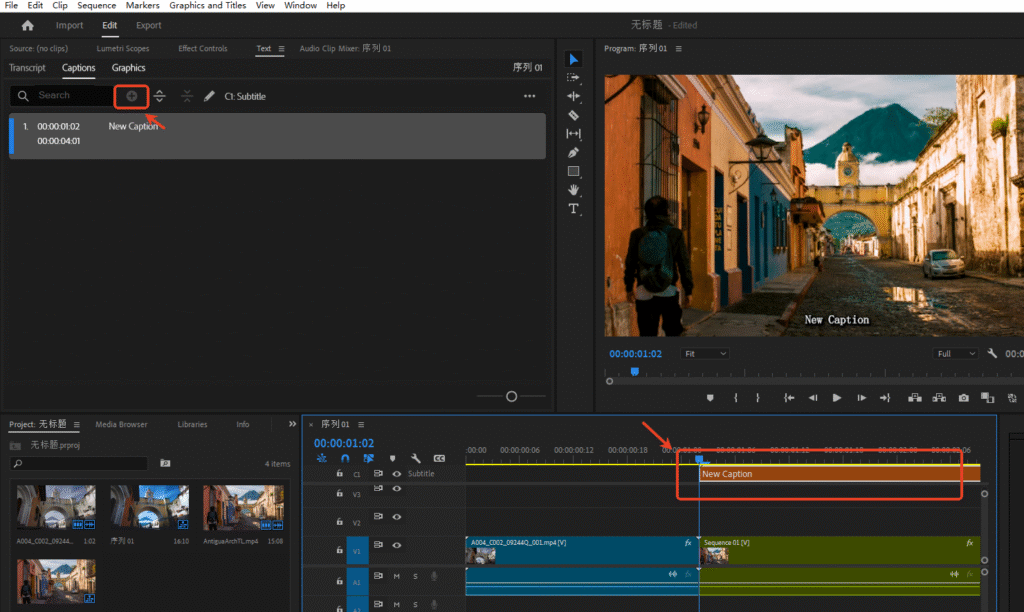
- Add Caption Content: Click the ‘+’ icon in the interface to create your Pr Captions content.
2.Setting Pr Caption Styles
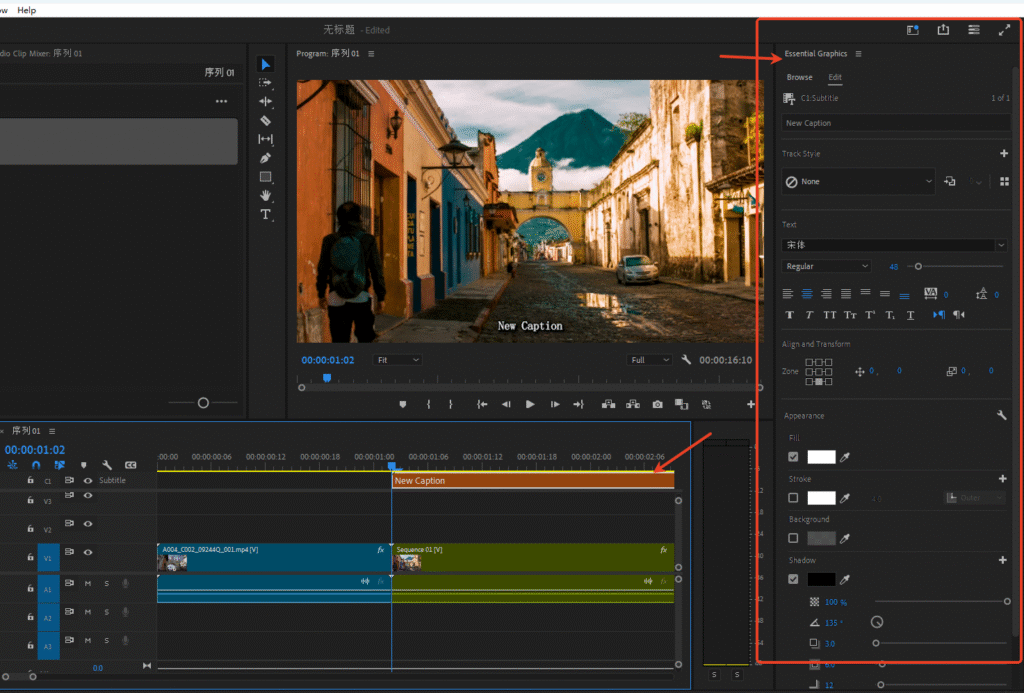
- Select the Caption Clip on the Timeline: Select the Pr Captions clip you created.
- Add Basic Styles: In the Pr Essential Graphics Panel, you can customize the style effects of your Pr Captions, adjusting basic parameters like font, size, color, stroke, shadow, etc.
3.Pr Caption Animation Effects
- Select the Caption Clip on the Timeline: Select the Pr Captions clip you created.
- Add Basic Animation: Open the ‘Effect Controls’ Panel, add keyframes to properties like ‘Position’, ‘Opacity’, ‘Scale’, etc., and manually adjust parameter changes to achieve effects like fade-in/fade-out or sliding for your Captions. Note: Pr’s Captions style templates are relatively basic. Complex animations require frame-by-frame debugging of Pr keyframes. This method is suitable for scenarios requiring rapid addition of a large number of Static Captions (e.g., tutorials, interview-style videos).
4.Pr Motion Graphics for Captions
In Pr editing, it’s more recommended to use the ‘Essential Graphics’ Panel to create Motion Graphics Captions, as it offers greater flexibility and allows direct addition of dynamic effects.
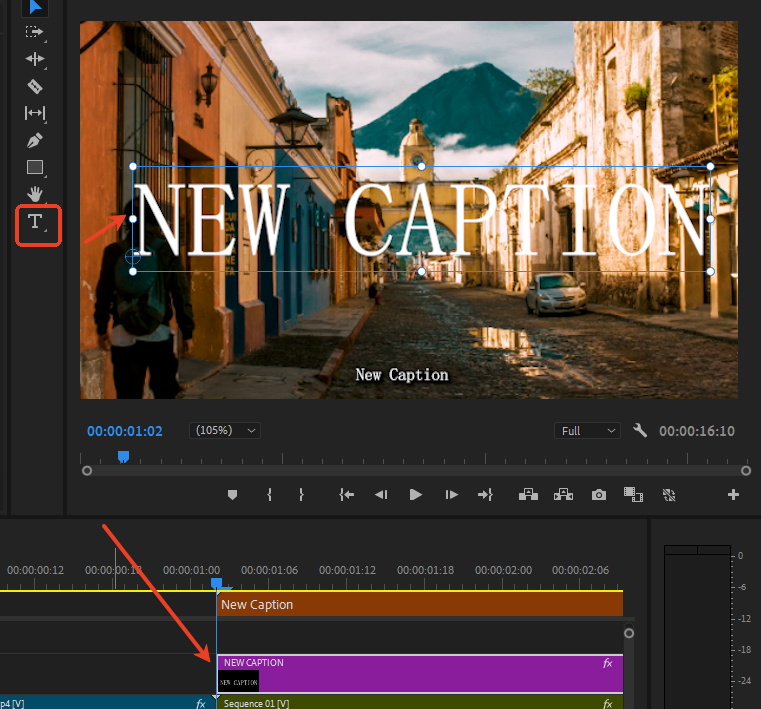
- Use the Text Tool to Add Captions: Click the Text Tool in the Pr interface, move the mouse to a suitable position in the Program Monitor, and click to add a Pr Motion Graphics text as a Caption at that location. After entering text, the Caption is automatically added to the video track on the Pr Timeline (no need to create a separate Captions track).
- Set Advanced Styles: In the ‘Properties’ section of the Pr Essential Graphics Panel, you can set advanced styles like gradient fill, multiple strokes, glow, texture overlay, etc. These options are richer than native Pr Captions style options, allowing for parameter customization to create unique effects.
- Add Flexible Animation: Select the Motion Graphics Caption on the Pr Timeline, open the ‘Effect Controls’ Panel, and you can add keyframes for ‘Scale’, ‘Rotation’, ‘Position’, etc., to precisely control the animation path. You can also directly use Pr’s built-in animated Captions templates (new in the 2024 version, with over 30 preset animations), drag and drop them onto the Caption to apply, and even fine-tune the parameters. Remark: The advantages of this method are: Captions can be edited directly on the Timeline, support batch adjustment of position and size, have smoother animation effects, and can be combined with elements like rectangles and graphics (e.g., adding a semi-transparent background bar for enhanced readability). It’s suitable for users with some foundational skills who pursue more creativity.
5.Using a Pr Captions Plugin to Add Captions
If you find manually adding Captions, debugging styles, and animations too time-consuming, it’s recommended to try installing a third-party Pr Captions plugin, like PrAide. This plugin can help you quickly implement Pr Captions addition.
- Massive Templates, Apply Pr Caption Styles + Animation Effects in One Second In the main interface of PrAide, selecting the ‘Captions‘ category takes you to the Pr Captions template asset library. It contains both Static Captions and Animated Captions templates, covering styles like film/TV montage, talking-head videos, variety show on-screen text, e-commerce marketing, minimalist, cute, and many more. Whether you’re making short videos, promotional films, or tutorials, you can find suitable ones. Compared to manual design, using templates is exceptionally convenient: no need to adjust fonts, colors, or strokes yourself. Simply select your Pr Motion Graphics Caption on the Timeline, double-click a PrAide Pr Captions template, and apply the style and animation effects in one second. If unsatisfied, you can switch to other templates at any time.
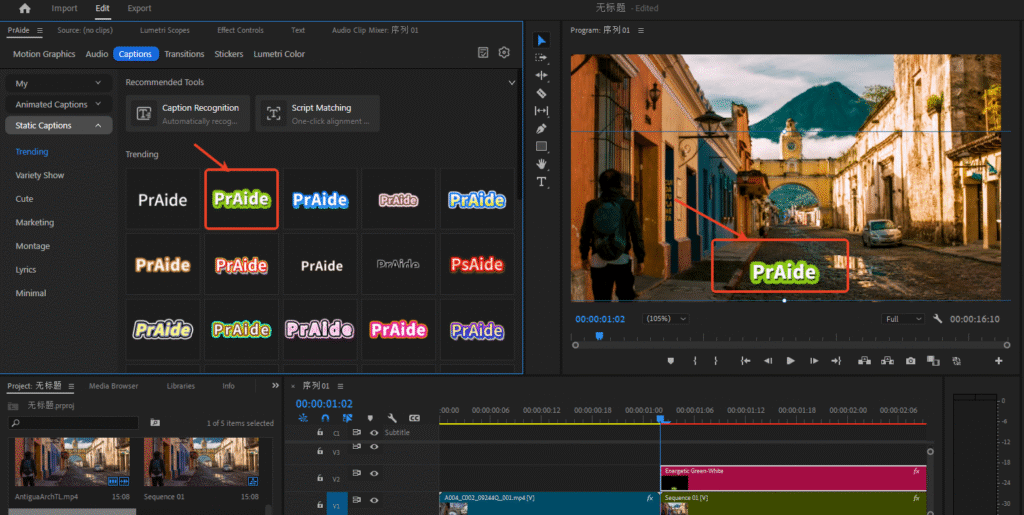
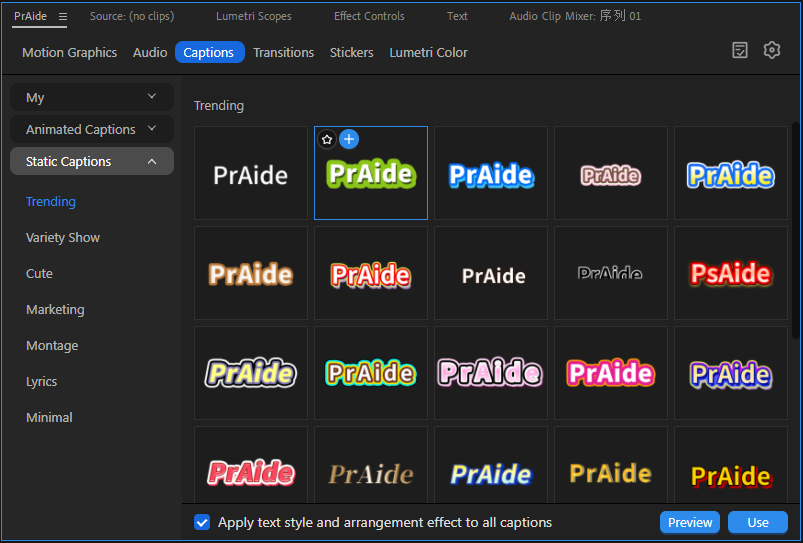
- One-Click Synchronization, Ensuring Uniform Pr Caption Style When working on long videos, to keep all Pr Captions in a uniform style without adjusting each segment individually – PrAide has a ‘One-Click Sync’ function. After checking the box in the lower left corner of the interface, subsequent modifications to parameters like fill color, stroke color, size, and position of a Pr Caption will automatically synchronize to all Pr Motion Graphics Captions created using PrAide. No manual batch editing is required throughout the process, making it as convenient as editing Captions in other user-friendly editors.
- Integrated AI Tools, One-Stop Solution from Recognition to VoiceoverPrAide provides a full suite of services around Pr Captions, not just easy-to-use templates:
- Accurate Caption Recognition: Built-in AI Caption Recognition and AI Script Matching tools offer accurate speech-to-text and script-to-timeline alignment. No need for manual word-by-word input, and it eliminates the hassle of correcting low-accuracy tools. Captions generated by PrAide are automatically converted into Pr Motion Graphics, ready to use with PrAideCaptions templates.
- Multi-Voice AI Voiceover: Supports adding AI Voiceover to Captions, with natural and expressive results, eliminating the need for additional human voice recording.
- One-Stop Service: The entire process – from Caption Recognition, script alignment, applying style/animation templates, and automatic synchronization, to AI Voiceover – can be completed entirely within Pr. No need to switch between multiple software, significantly improving editing efficiency.
Summary:
Pr’s native Captions are suitable for basic, static needs, with simple operations but limited styles and animations. Motion Graphics Captions are suitable for users with some design foundation, offering rich styles and flexible animations but are more time-consuming. PrAide, however, eliminates the hassle of manual addition and debugging. Whether you’re a beginner or a frequent editor, you can quickly create beautiful, uniform Pr Captions.
If you want to improve the efficiency of Pr Captions production and make your videos look more professional, why not try PrAide? Use templates and AI tools to easily handle Caption recognition, beautification, and voiceover, making editing more worry-free.
PrAide Download:https://pr.aide.art/
Perhaps a simple attempt will bring unprecedented ease to your Pr editing. If you’re struggling with beautifying Pr Caption styles or creating Pr Caption animations, click to Install Now and try PrAide bravely—you might gain unexpected rewards.